


 176
176
How to collect a Chromeleon System Status Report (SSR)?
The Chromeleon System Status Report (SSR) is a powerful diagnostic troubleshooting tool that Support and Development can use to collect information about Chromeleon problems. To generate this report on any Chromeleon system, follow this procedure:
1. Go to the IPC, Client, or Server as required. Log on with elevated privileges.
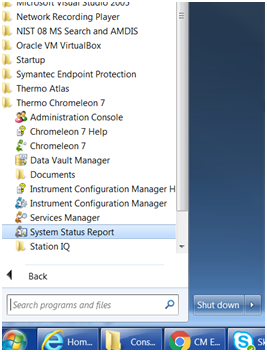
Click Start>All Programs>Thermo Chromeleon 7>System Status Report
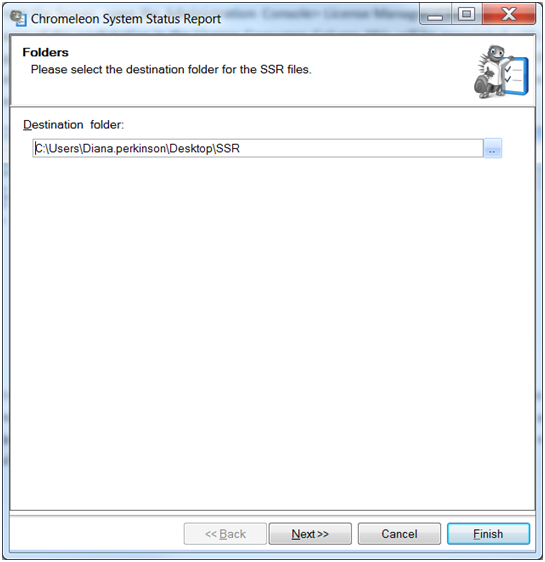
2. If a message asking to allow the program to make changes is received, choose Yes. A new window will open. Click the browse button beside the Destination Folder’ field and browse to the desired location to save the SSR. Click Next.
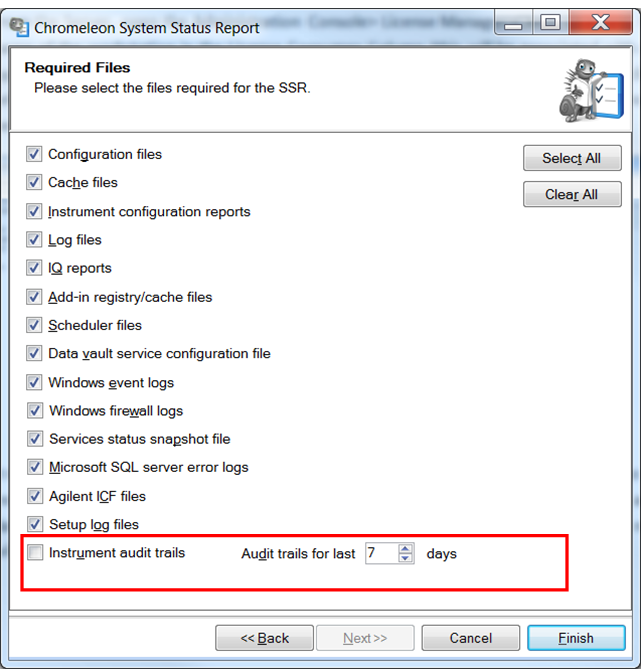
3. Instrument audit trails are not automatically included. If these are required, check the box beside Instrument Audit Trails. Select the number of days that includes the date(s) of interest.
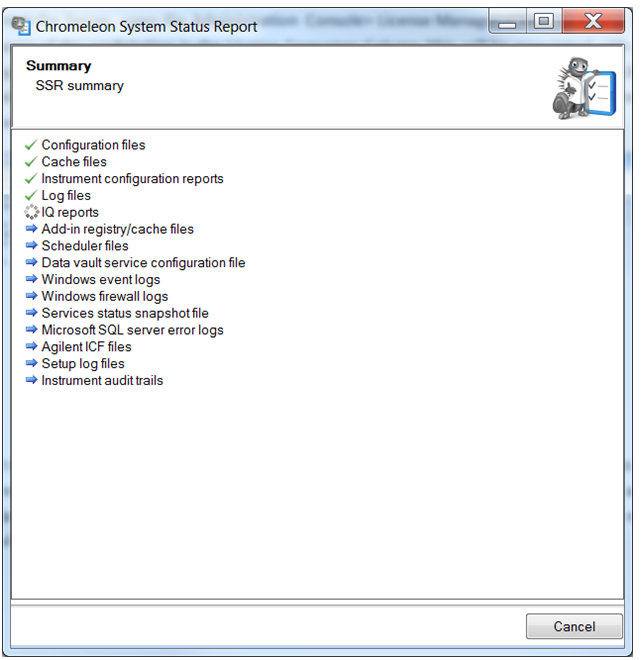
4. Click Finish. A green check mark will appear beside each item as it is generated. (Note: If any items display a red symbol with an X, the requested log files were not generated. Refer to KB 29484 for the most common reasons for failure to generate the requested log files.)
5. When the SSR generation is complete, a zip file will be created in the designated location. Click the check box to show the ZIP file. Click Finish.
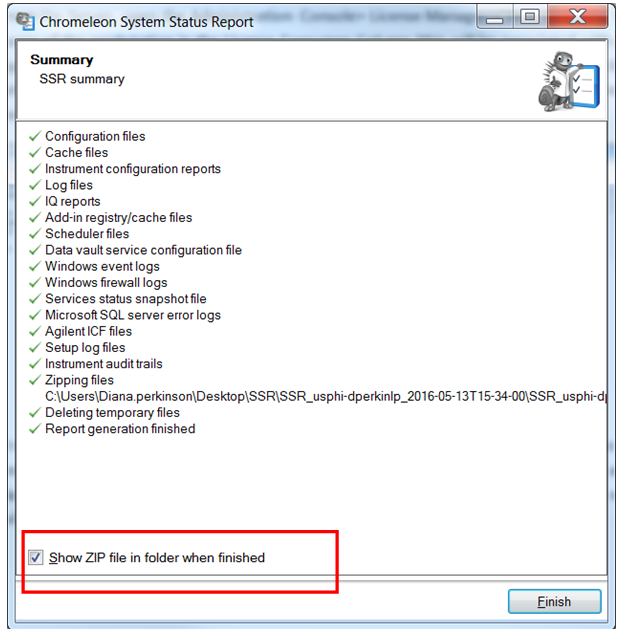
6. The file will open showing two items, a status report and a zip file with the remainder of the exported items. To send these to support for analysis, zip these two folders.
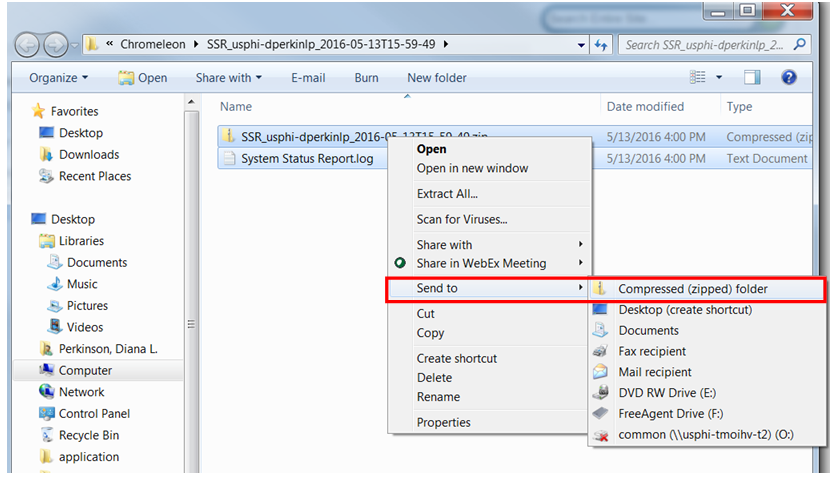
7. The zip file may be too large to email; however, it can be uploaded it to the FTP site on the resource page at https://support.thermoinformatics.com, located under More Resources>Customer FTP. Please send an email to [email protected] to notify support if a file has been uploaded as there is no automatic notification.

